REQUIRES GROOMLOG PROTurn on online booking and share your link
Clients pick a service and a slot you actually have free, and the request waits for your approval. Here is the whole setup, start to finish.
schedule4 min readphone_iphoneiPhoneupdateUpdated September 2026
infoBefore you start, make sure Account settings has your business name and at least one service with a price. Clients can only pick services you’ve added, and your booking link is built from your business name.
Turn online booking on
Online booking lives in Settings and takes one tap to switch on. The first time you enable it, GroomLog claims a web address from your business name, and that address stays yours.
1Open Settings from the tab bar, then tap Online booking.
2Switch on Enable online booking. If you’re not on Pro yet, the upgrade screen appears here. You can start a 7-day free trial and carry on.
3Your link appears straight away, in the form yoursalon.groomlog.app/booking. Tap it to preview, or tap the copy icon to put it on your clipboard.
warningIf the switch won’t turn on, it’s one of three things: you haven’t set a business name, your business name has no letters or numbers to build a link from, or that address is already taken by another salon. Fix it in Settings → Account → Business name, then try the switch again.
Set the hours you’ll accept
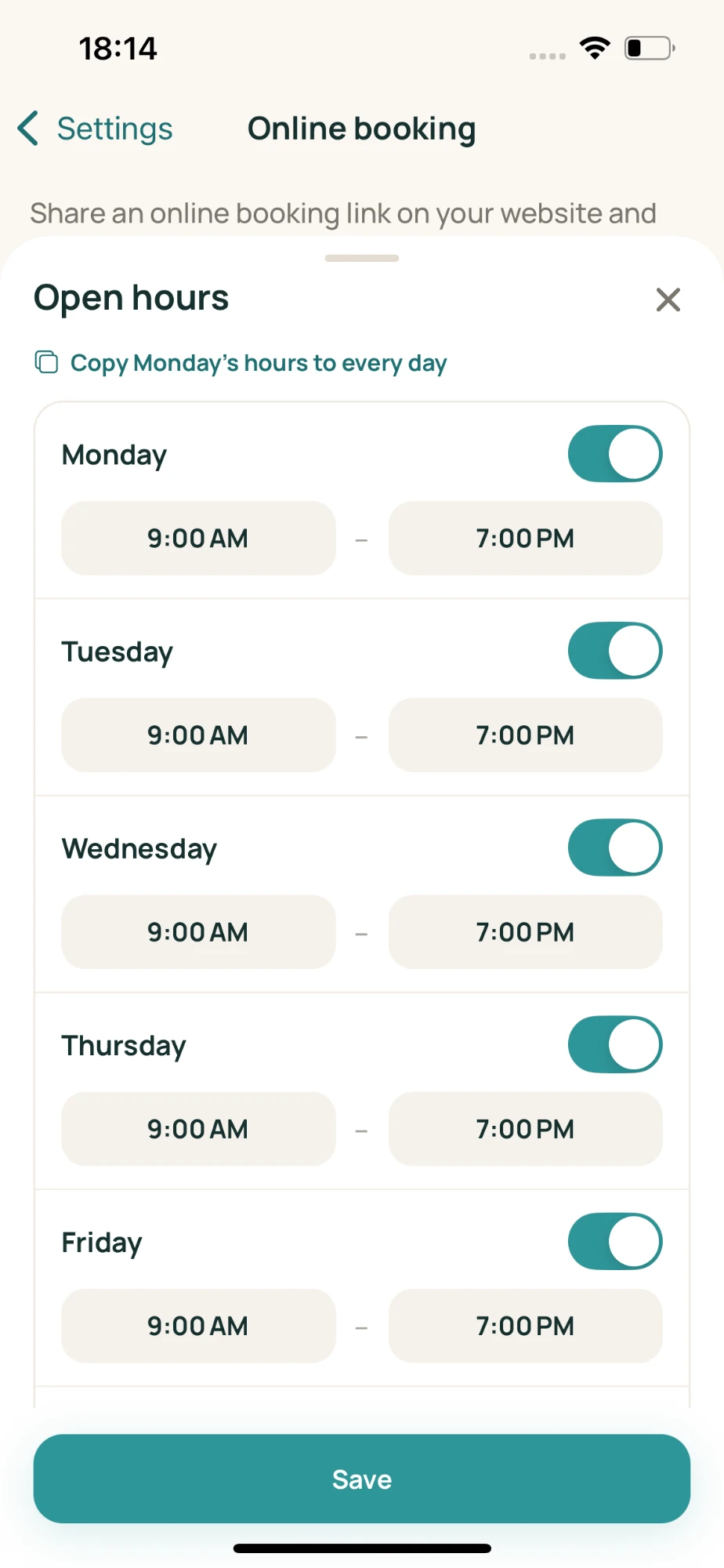
Your open hours decide which slots clients can see. GroomLog starts you on 9:00–17:00 Monday to Friday with weekends closed, so change it before you share the link.
Tap your open hours on the Online booking screen, then set an open and close time per day and switch off the days you don’t work. Slots are offered inside those hours around the bookings already in your diary, so a full day shows nothing free.
Each day has its own switch and times. Use Copy Monday’s hours to every day if most of your week looks the same.
Make the page look like your salon
Further down the Online booking screen, under Branding, you can add your logo and pick a brand colour. Both show on every public page you share, so clients recognise it as yours rather than ours.
- check_circleSquare logos read best, around 500×500 or larger
- check_circlePick a colour dark enough for white text to sit on
- check_circleChanges are live the moment you save, no republishing
Put the link where clients already look
One link does all the work. The bookings that arrive overnight are the ones you’d otherwise have missed, so the more places it lives, the fewer texts you answer mid-groom.
alternate_emailInstagram & Facebook bio
The single highest-traffic spot for most salons.
chatYour text reply template
Answer “are you free Friday?” with the link instead of a time.
qr_code_2A QR code by the till
Turn the copied link into a QR code and print it small.
Nothing enters your day without you
Online bookings arrive as requests, not confirmed appointments. They appear in a card on your Home screen and on the day itself in your schedule, marked as pending.
Open a request to see the owner, the dog, the service and the slot they asked for. Accept it and it becomes a normal booking you can edit like any other. Decline it and the slot frees up again.
lightbulbRequests from people who aren’t on your books yet come with the details they typed. Pair online booking with
new client registration and you’ll have vaccinations, vet and consent on file before they arrive.